Getting Started
The installation program creates a new program group entry on the start menu with the title "CORE 9". It contains an entry labeled "Empty Repository". To run CORE with the default repository (EmptyRepository.c90), simply click on this menu item.
 |
Microsoft Firewall
If the Microsoft Windows Firewall is being used and you are using the Network License Manager, a firewall window will appear when you start CORE for the first time. Windows Firewall will ask you to choose to either bock or unblock the “core90.exe” file. Select Unblock. The CORE Login window will then appear.
|
| |
License Mechanism
If you are using the network license manager (NLM) or enterprise license manager (ELM), you will be prompted to select a license token before proceeding to the CORE Login window.
|
The CORE Login window shown below will open. CORE is configured with one initial user account—the Administrator account. The user name and password are case sensitive. Log in as shown below:
User Name: Administrator
Password: admin
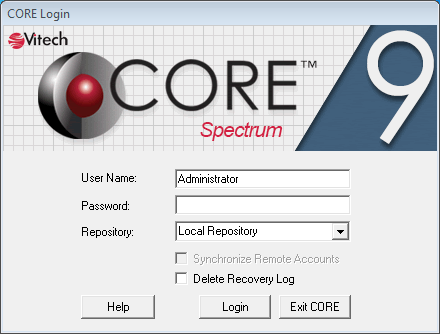
If you are logging into a CORE Server, select that server from the Repository drop down box. With the exception of those users who utilize the ELM for licensing, you can also choose to login to the Local Repository.
Below the repository field are two checkboxes:
- Synchronize Remote Accounts - When working with both remote and local repositories, it's often useful to synchronize the remote users and groups onto your local machine. If the box on the login dialog is checked, this downloads the user accounts from the server and generates local accounts so that the users are available when logging into the remote repository (either for login or simply to assign permissions, etc). If you are logging into the local repository, this option is disabled.
- Delete Recovery Log (not shown the first time you log in) - When making changes to projects in your local repository, CORE automatically maintains a recovery log so that in the event of a Windows crash or other event you can recover unsaved database changes. Checking this box will clear the current recovery log for this local repository file.
After logging in, new user accounts can be created and passwords may be changed via the User/Group Tool accessible via the Administrative Tools link. At this point, the CORE software is installed and licensed. Now you’re ready to get started using CORE.
 |
Changing the Administrator Password
When using the local repository, if you change the Administrator password, be sure to save the repository. For security reasons, unlike all other account passwords, the Administrator password is never loaded from the disk-resident access control files (ACFs) for use at login. Therefore, the only way to store a new password for the Administrator account is to save the repository after changing the password.
|